My personal Godot habits and tricks
Jump to comments ↓How this started
I put together a post about genuinely useful Godot plugins before, and this time I want to talk about something more basic: the habits I have when developing in Godot.
Today I saw a thread on GodotHub called Godot development experience sharing. A lot of it is what I already do, and some of it is where we differ.
The site owner started out making games, so having almost nothing about game development on my own blog is a bit awkward too (cough).
So here are my own Godot habits.
% as the only name you access
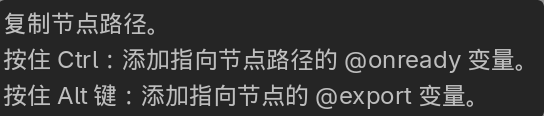
When you reference a node in a Godot script, holding ctrl or alt and dragging the node to generate @onready or @export is convenient, but:
@onready var start_button: Button = $Panel/MarginContainer/VBoxContainer/StartButtonLater, to adjust the UI, you add one more container layer, and that path has to change with it.
Godot’s scene unique names fit exactly here. Right-click the node in the scene tree, enable “Access as Unique Name”, a % marker appears next to the node, and the script can be shortened to:
@onready var start_button: Button = %StartButtonAs long as it stays inside the same owner scene and the name doesn’t change, reorganizing the node hierarchy in between doesn’t require touching this reference again. The marker in the scene tree also reminds me that this node is probably being used by a script.
“Unique” here means unique inside the scene, decided by the node’s owner. For example, if the player scene instantiates a weapon scene, the player script can’t use %Blade to reach the blade inside the weapon. So I keep these references inside their own scenes.
Resource references, preload, and constants
I usually use preload inside a single scene, for example a configured state machine tree.
Exported references I generally use for cross-scene references.
Constant resources are usually things that don’t change often and aren’t convenient to reference, like the data class of a save system. That’s an abstract resource a global script needs, and the logic implementation will certainly need it, so it won’t change.
For example, when giving a portal a destination scene, you can export a property, because this scene will certainly be reused in other scenes while teleporting to different places.
extends Area2D
@export var destination_scene: PackedSceneThen drag the corresponding scene in from the Inspector. Put the same portal scene into different levels, and each can choose its own destination. It’s more intuitive to change.
When you really do need to load a resource at a fixed point in the script, you can right-click in Godot’s FileSystem panel and copy the UID, then put the actual uid://... into the string argument of preload(). After the resource moves, the reference no longer depends on the original file path.
UID manages resource identity; %StartButton manages a node reference inside a scene. They solve two different problems.
Theme
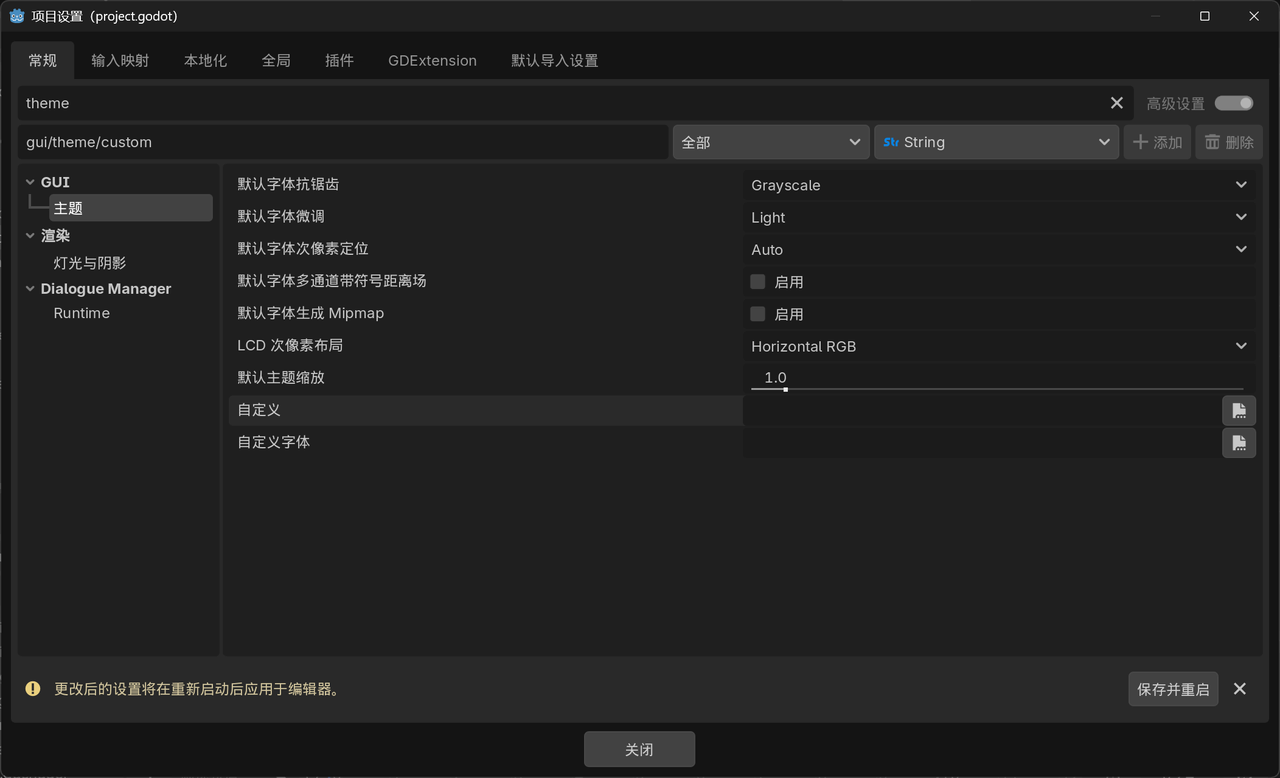
I’d rather create a Theme resource first, put the shared styles of buttons, labels and panels into it, and assign it to the root Control of the interface. The controls below inherit that theme, and when I later want to change the font or adjust a button style there’s one place to change it.
The same kind of button can also have different purposes, like a normal button, a confirm button and a delete button. In that case you can use theme type variations:
- Next to the type list in the theme editor, click the plus sign to create a type, for example
DangerButton - Switch to the tab behind the tool icon and set its base type to
Button - Change the colors and styles of this variation, then fill
DangerButtoninto the target button’sTheme Type Variation
That way the shared font and spacing still come from Button, and the delete button only needs to maintain the parts that differ. If the variation doesn’t show up in the dropdown, you can also type the name directly.
When a single control really has a special need, local overrides are fine too. It’s just that styles that repeat are much easier to change later once they’re in the theme.
Type hints and doc comments, write a little as you go
GDScript doesn’t force you to write types, but once you write out what a variable is, what a function takes and what it returns, it reads much more clearly, and the editor can give more accurate completion and error messages.
extends Node
## 当前关卡获得的分数var score: int = 0
## 增加分数,amount 为本次获得的分数func add_score(amount: int) -> void: score += amountTwo things are used here at once: int and -> void are type hints, and the ## before the members is a documentation comment.
Something like var score := 0, where the type can be inferred clearly, is also good to use. You don’t have to stretch every line just to write a type. For function parameters, return values and important node references, I’d rather write them out explicitly.
If the auto-completed functions never have types, you can search Add Type Hints in the editor settings; the location is Text Editor → Completion → Add Type Hints. For details see the static typing documentation.
As for comments, I think the most worthwhile things to write are what a parameter means, its unit, and the conditions for calling it. For example, whether a time parameter is in seconds or milliseconds — you’ll forget yourself after a while. Writing those clearly is more useful than translating every line of code.
What you write with ## can also be recognized by Godot’s built-in help, and when written on exported properties it can show up as an Inspector tooltip. That’s convenient when making plugins or components for other people. The full documentation comment syntax is here.
Wrapping long conditions, prefer parentheses
Cram a few conditions onto one line and it quickly runs off the screen, especially when you have two scripts open side by side.
GDScript can continue a line with a backslash, but I’d rather wrap the expression in parentheses. This is what the official style guide recommends, and it’s less trouble when you add or remove conditions later.
func can_interact(in_range: bool, target_visible: bool, dialogue_open: bool) -> bool: return ( in_range and target_visible and not dialogue_open )The two vertical lines in the editor are the soft and hard reference lines for line length. They remind you whether code is getting too long — they don’t mean it won’t run if you cross them, and you don’t need to break a simple expression into fragments just to stay inside them.
Put files by scene and by feature, as long as it’s easy to find
In that tutorial, files are split into scripts, scenes and assets. It’s intuitive, but once the project gets bigger, one player’s scene, script and config might send you back and forth between several directories, which is a bit of a hassle.
I’d rather keep things that get modified together in one place, for example:
res://├── characters/│ └── player/│ ├── player.tscn│ ├── player.gd│ └── player_stats.tres├── ui/│ └── inventory/│ ├── inventory.tscn│ ├── inventory.gd│ └── inventory_slot.tscn├── shared/│ ├── themes/│ └── shaders/└── assets/ ├── fonts/ └── audio/The player’s own stuff goes into player, the inventory UI’s own stuff goes into inventory, and fonts, audio and themes used in several places are collected separately. Godot’s project organization docs also recommend keeping related resources close to the scene.
If the directories you already have work well, keep using them. The most meaningful result of organizing directories is reducing the time spent on the next change.
Let the sub-scene say what happened, leave outside matters to the parent
For example, when an inventory slot is clicked, it can emit an item_selected signal carrying the item ID, and then the inventory UI decides whether to show details or equip the item.
If the slot instead walks up through get_parent() to find the main scene and directly modifies the player and the detail panel, reusing that slot somewhere else easily brings problems along with it.
I think the key here is to make sub-scenes depend less on the concrete structure outside them, and put cross-scene connections and coordination in the parent layer that knows both sides. When directly connecting one clear signal is enough, there’s no need to wrap another global event system around it.
The official scene organization docs have quite a few examples of this kind of relationship.
Shared resources and instance variables are not the same thing
This comes up especially with materials, themes and custom Resources. For example, several characters reference the same stats resource, and changing the HP inside it at runtime can end up changing the other characters too.
Godot reuses resources that are already loaded, and a resource being built into a scene doesn’t mean every instantiation of that scene automatically gets its own separate copy.
If you want a resource to be independent per scene instance, you can set Local To Scene in the resource’s Inspector, or duplicate the resource when you genuinely need separate data. Shared textures, fonts and read-only config keep being shared.
But “sharing the same script resource” and “sharing all the variables in the script” are not the same thing. When two nodes use the same script, ordinary member variables still belong to their own script instances — the score above records its own score for each. Only static variables have that other shared meaning.
So when several objects change together, first check whether they’re referencing the same mutable resource. That’s easier than sprinkling duplication logic everywhere.
Assorted small tips
Stop the space bar from pressing UI
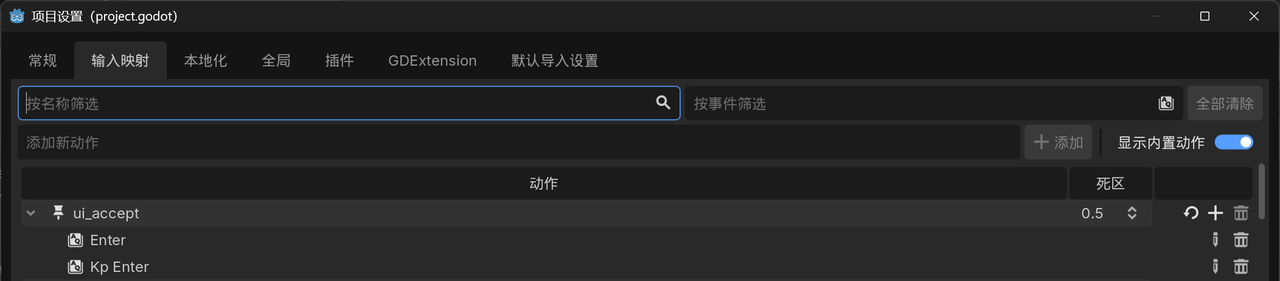
The simplest way is to find ui_accept in the input map and delete space from it. As for why: Godot’s UI nodes can be pressed by ui_accept by default, and space is that action’s default key. It’s that simple.
Use region to fold, comments to explain why
When a script gets a bit long, you can use #region and #endregion to section related code and the editor will fold that block. The official syntax is here.
#region Score
var score: int = 0
func add_score(amount: int) -> void: score += amount
#endregionThese two markers have no space after the #, unlike a normal comment. Written as # region it’s just an ordinary comment.
References and continuing
This post references Tencent Channel’s Godot development experience sharing and additions from its comments. The official docs for the relevant usage are linked in each section.
If you want to look at some useful plugins, you can continue with genuinely useful Godot plugins.